
Securing Home WiFi Networks: A Practical Cybersecurity Guide
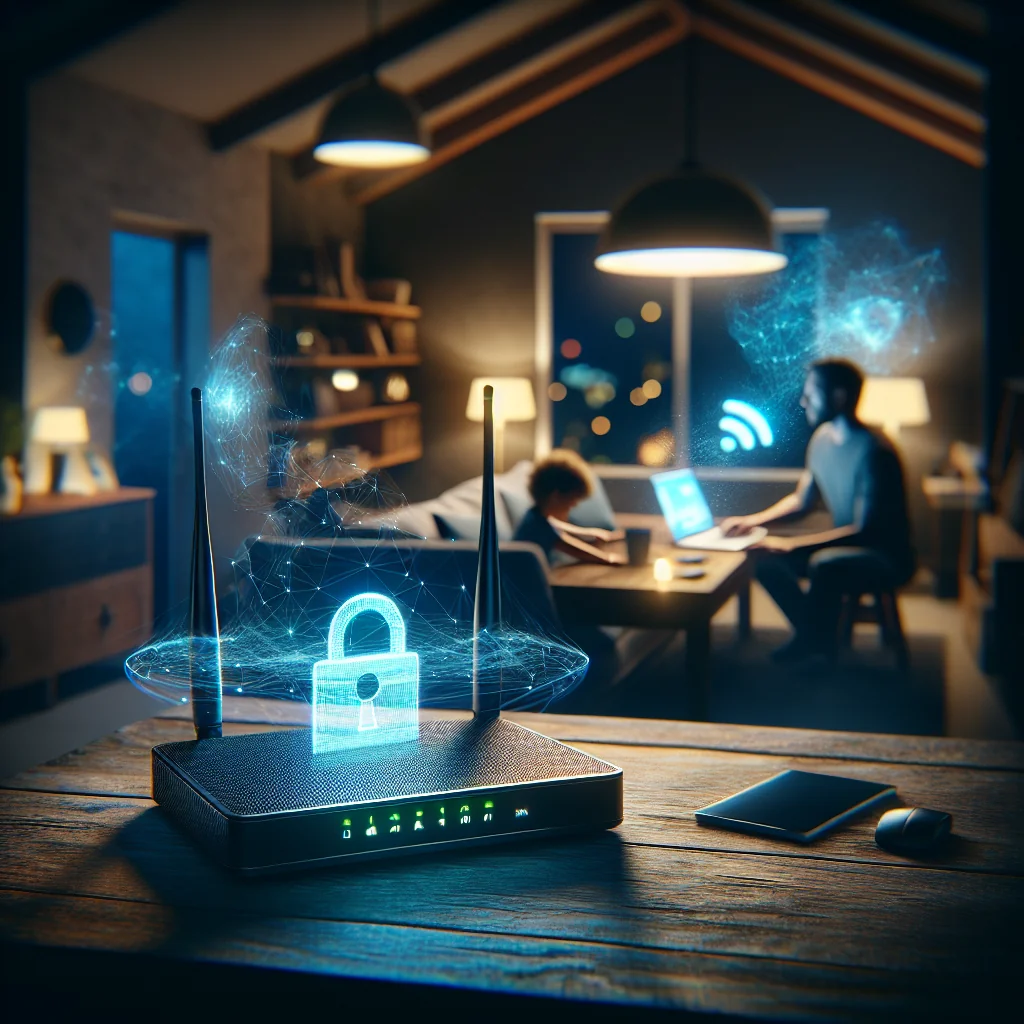
Securing home WiFi networks is one of the most effective ways to protect your devices, data, and identity. A weak router password or an open network can give attackers an easy way into your digital life. This guide walks through WiFi security step by step and connects it with other key cybersecurity basics you should know.
Why Securing Your Home WiFi Matters
Your home WiFi is the main gateway between your devices and the internet. If that gateway is weak, attackers can spy on traffic, steal passwords, or install malware. They may also use your network for illegal activity, which can trace back to your IP address.
Strong WiFi security reduces the risk of ransomware, phishing success, and identity theft. It also protects smart devices like cameras and speakers, which are often easier targets than laptops or phones. Treat your router like the front door to your digital home and lock it properly.
Securing home WiFi networks is the foundation of your digital safety. Combine strong router settings, good password habits, and tools like VPNs and security software. Stay alert to phishing, scam websites, and social engineering tricks that try to bypass your technical defenses.
Fast Wins for Securing Home WiFi Networks
You can improve WiFi security quickly with a few simple changes. These steps block many easy attacks that target home networks and give you a safer base to build on.
Quick Wins You Can Apply This Week
Start with a handful of actions that give you fast security gains without much effort. Use the checklist below as a starting point for everyone in your home.
- Rename your WiFi network so it does not reveal your name, address, or router brand.
- Use a long, unique WiFi password that you do not reuse on any website.
- Turn off WPS and guest networks you are not using on your router.
- Enable automatic updates on your router and main devices where possible.
- Install security software on laptops and phones that connect to your WiFi.
These steps block easy entry points for attackers, like guessing weak passwords or abusing unused features. Once these basics are in place, you can move on to deeper settings and tools with less stress.
How Your Daily Choices Affect WiFi Security
Technical settings matter, but daily behavior often decides whether an attack works. The table below links common situations at home with safer choices you can make in seconds.
Everyday Home WiFi Scenarios and Safer Responses
| Scenario | Risk | Safer Action |
|---|---|---|
| You get an email saying your router needs a “security update” with a link. | Phishing page can steal your router login and change settings. | Ignore the link; log in to the router’s web page directly or use the official app. |
| A friend asks for your WiFi password during a visit. | Their infected device could spread malware on your main network. | Create or enable a guest network with internet access only and a different password. |
| Your child wants to install a free game from an unknown website. | Malicious downloads can infect every device using your WiFi. | Use official app stores and set parental controls or app approval rules. |
| You work from home and sometimes connect to public WiFi at cafés. | Attackers on public WiFi may steal passwords or session cookies. | Use a trusted VPN on laptops and phones, and change key passwords regularly. |
By treating your home network as a key part of your identity protection, you greatly lower the chances of malware infections, ransomware attacks, and account takeovers. Small, steady improvements in both your setup and your habits turn these everyday moments into layers of defense that grow stronger over time.
How to Secure Social Media Accounts from Home
Social media accounts often hold more personal information than people realize. Attackers can use this data for social engineering, identity theft, or to break into other accounts. Securing these profiles from your home network reduces the damage if someone ever gets onto your WiFi.
Practical Steps to Lock Down Your Profiles
Start with a few high-impact changes that greatly reduce your risk. These checks apply to most major platforms and help protect both your account and your personal data.
- Use a unique, strong password for each social media account.
- Turn on two-factor authentication (2FA) using an authenticator app if possible.
- Review and tighten privacy settings for posts, photos, and contact details.
- Remove old apps, games, and services that still have access to your profile.
- Limit what you share in your bio and public posts, especially location and contact info.
- Be cautious with friend or follow requests from people you do not know.
- Log out from shared or public devices and avoid saving passwords on them.
For example, a fake “friend” request could be from an attacker who sees your job and city, then uses that data to guess password reset questions for other accounts. Strong passwords and 2FA make that much harder.
Common Social Media Risks and Safer Choices
The table below shows how small choices on social media can create risk, and what a safer option looks like in everyday use.
Examples of Risky vs. Safer Social Media Habits
| Scenario | Risky Behavior | Safer Approach |
|---|---|---|
| New login alert from unknown device | Ignore the alert and keep using the account as normal. | Change your password, check recent logins, and enable 2FA. |
| Quiz app asking for profile access | Grant full access to play a “fun personality quiz.” | Skip the quiz or deny access; remove any apps you do not trust. |
| Friend request from “friend of a friend” | Accept without checking the profile or mutual contacts. | Verify their profile, message a real mutual friend, or ignore the request. |
| Posting travel photos | Share live updates with location tags while still away from home. | Post photos after returning and hide location details from public view. |
By choosing the safer option in these everyday situations, you make your social media accounts far harder to abuse, while still being able to enjoy sharing and staying in touch.
Protecting Identity Online from Your Home Network
Identity protection starts with your home WiFi but extends to every account and device. Think about how someone could move from hacking your router to reading your email or draining your bank account, then close those gaps step by step.
Everyday Habits That Protect Your Identity
Small, repeatable habits make a big difference to identity safety. Use them as a quick checklist for everyone in your home.
- Use strong, unique passwords for WiFi, email, and banking accounts.
- Turn on two-factor authentication for key accounts like email and banking.
- Keep your router firmware, phones, and computers updated.
- Avoid sharing your full name, address, or ID numbers on public profiles.
- Do not reuse your WiFi password for any online account.
- Shred or securely store documents with financial or medical details.
- Use a password manager instead of saving passwords in your browser.
- Check bank and credit accounts regularly for strange or small test charges.
For example, a reused password from a shopping site breach can let an attacker log in to your email, then reset passwords for your bank. Unique passwords and two-factor authentication break this chain.
Practical Scenarios and What to Do
The table below shows common home scenarios and simple actions you can take to protect your identity before problems grow.
Common Identity Risks at Home and How to Respond
| Scenario | Risk to Your Identity | Best Response |
|---|---|---|
| Strange device appears on your WiFi network | Unknown user can watch traffic or attack devices. | Change WiFi and router admin passwords, remove device, and update firmware. |
| You get a “new login” alert for email or banking | Attacker may reset other account passwords and access personal data. | Log out all sessions, change password, enable two-factor, and contact support if needed. |
| Small, unexplained charge appears on your card | Criminal tests card before larger fraud or identity theft. | Report the charge, request a new card, and monitor all accounts closely. |
| Lost phone without screen lock or PIN | Finder can open apps, read email, and reset passwords. | Use “find my device” to lock or wipe, change critical passwords, and add a strong lock. |
| Phishing email asks you to “verify” bank or tax details | Stolen credentials or personal data used to open accounts in your name. | Do not click links; sign in via the official site or app and report the email. |
If you ever see signs of fraud, such as credit checks you did not request or new accounts in your name, contact your bank and local credit agencies quickly and ask about freezing or locking your credit to stop more damage.
Clearing Browser Cache Safely on Home Devices
Your browser cache stores copies of pages, images, and sometimes data from sites you visit. This speeds up browsing but can also leave traces of your activity on shared devices. Clearing the cache can help protect privacy and fix some website issues.
When Clearing Cache Helps in Everyday Use
Cache clearing is most useful in a few common situations. These short examples show when you should consider doing it and what to expect.
- Shared family laptop: You use online banking on a shared computer and want fewer traces of your activity left for the next user.
- Website looks broken: A site you visit often shows old content or layout issues after an update, while it looks fine on your phone.
- Stuck logins: You stay logged into an account on a public or guest device and want to reduce the chance of someone reusing that session.
- Slow browser: Pages load slowly even on a fast connection, and other devices on the same network work normally.
In each case, clearing cached files can refresh stored data, reduce what others can see, and help pages load correctly again.
Where to Find Cache Settings in Popular Browsers
The exact menu names differ slightly by browser, but the process is similar. Use this table as a quick reference before you start clearing data.
Quick Paths to Cache Settings in Common Browsers
| Browser | Menu Path to Clear Cache |
|---|---|
| Chrome (desktop) | Menu > Settings > Privacy and security > Clear browsing data |
| Firefox (desktop) | Menu > Settings > Privacy & Security > Cookies and Site Data > Clear Data |
| Microsoft Edge | Menu > Settings > Privacy, search, and services > Clear browsing data |
| Safari (Mac) | Safari > Settings/Preferences > Privacy > Manage Website Data |
| Mobile browsers | Settings inside the browser app > Privacy or History > Clear browsing data |
If you cannot find the exact option, search within the browser settings for “cache” or “browsing data” and follow the prompts. Clear cached images and files first before removing cookies, so you do not lose logins you still need.
WiFi Encryption and Why It Protects You
Encryption is a way of scrambling data so that only someone with the right key can read it. Your devices use encryption for secure websites, messaging apps, and VPNs. Your router also uses encryption to protect WiFi traffic.
How WiFi Encryption Works in Daily Life
When you enable strong WiFi security, you turn on encryption between your devices and the router. This makes it much harder for attackers to read your data, even if they capture your network traffic.
- Online shopping at home: You enter card details on a store site. Encryption helps stop a nearby attacker from seeing those details over WiFi.
- Sending private messages: You chat with a friend over a messaging app. Even if someone records your WiFi traffic, the messages stay scrambled.
- Working from home: You connect to a company VPN. WiFi encryption adds another shield, so your login and work files are harder to steal.
- Using a smart TV: Your TV streams video and checks your accounts. Encryption helps keep your account tokens and viewing habits more private.
These examples show how WiFi encryption protects everyday activity, not just technical tasks. The goal is to make any captured data useless to an attacker without the right keys.
Common Home WiFi Encryption Options
Most home routers offer several security options. The table below shows how they differ in strength and where you might still see them.
Home WiFi Encryption Types and What They Mean
| Encryption Type | Security Level | Typical Use or Status |
|---|---|---|
| Open (no password) | Very weak | Guest networks in cafés; unsafe for home use |
| WEP | Very weak | Legacy only; should be avoided and replaced |
| WPA / WPA2-TKIP | Weak to moderate | Older devices; better than WEP, but outdated |
| WPA2-AES (WPA2-Personal) | Strong | Common on many home routers; safe for most homes |
| WPA3-Personal | Stronger | Newer routers and devices; best choice when available |
For a secure home network, choose WPA2-AES or WPA3 with a strong password. This gives your WiFi traffic solid protection, so casual snooping and many common attacks become far harder to pull off.
How to Secure Home WiFi: Core Settings to Change
The most effective WiFi protection comes from a few key changes on your router. These steps close the obvious doors that attackers often try first, and they apply to most modern home setups.
Priority Settings to Change First
Start with the changes that block the easiest attacks. These settings are usually in your router’s “Wireless” or “Security” menus.
- Change the default router login. Access the router admin page, then change the default username and password. Attackers know common defaults and can find them online.
- Use strong WiFi encryption. Select WPA2 or WPA3 security, not WEP or “open”. This encrypts traffic between devices and the router so nearby snoopers cannot read it.
- Create a strong WiFi password. Use a long, unique passphrase that is hard to guess but easy for you to remember.
- Update router firmware. Check for updates in the router admin panel. Updates often fix security holes that attackers already know how to exploit.
These changes alone block many casual break-in attempts. For example, a neighbor trying a default password or scanning for open networks will fail if these settings are in place.
Additional Router Tweaks for Safer Home WiFi
After the basics, refine a few more settings to reduce risk from more targeted attacks. Follow the ordered steps below to add another layer of protection.
- Disable WPS if possible. WiFi Protected Setup can be abused to break into networks, especially if it uses a PIN. Turning it off forces devices to use the main password instead.
- Separate guest networks. Create a guest WiFi for visitors and smart devices. Keep your main phones, laptops, and work computers on a separate, private network.
- Review connected devices. Regularly check the list of devices on your router. Remove anything you do not recognize, such as a strange phone name or unknown TV.
For instance, you might place a smart TV and doorbell camera on the guest network so a flaw in one gadget cannot reach your work laptop on the main network. These small tweaks greatly improve the security of securing home WiFi networks.
Example: Recommended WiFi Security Settings at a Glance
| Setting | Recommended Option | Why It Helps |
|---|---|---|
| Router admin login | Custom username and strong password | Prevents anyone using default logins to change your settings |
| WiFi security mode | WPA2‑Personal or WPA3‑Personal | Encrypts wireless traffic so others cannot read it |
| WiFi password | Long, unique passphrase (12+ characters) | Makes guessing or brute‑forcing the password far harder |
| WPS (WiFi Protected Setup) | Disabled, if the option exists | Removes a common shortcut attackers use to get in |
| Guest network | Enabled for visitors and smart devices | Keeps untrusted devices away from your main devices |
Once these core settings are in place, your home WiFi is far harder to break. From there, you can focus on device security and safe online habits, such as updating phones and laptops and using strong passwords on important accounts.
Public WiFi vs Secured Home WiFi
Public WiFi in cafes, airports, and hotels is usually less secure than a private home network. Attackers can set up fake hotspots or snoop on unencrypted traffic. Because you do not control the router or its settings, you must assume others may be watching.
Real-World Scenarios on Public and Home WiFi
These simple examples show how risks differ between public and home WiFi and why securing home WiFi networks is so valuable.
- Café hotspot trap: An attacker names a hotspot “Free_Cafe_WiFi” next to the real one. A user connects and types email and social media passwords on sites without HTTPS, which the attacker can capture.
- Airport browsing leak: A traveler checks flight details and reads news on open public WiFi. Background apps sync data that may travel unencrypted, giving attackers extra clues about the user.
- Shared hotel network: A guest streams movies on the hotel WiFi. Another guest scans the network and sees the guest’s device name and open file-sharing service.
- Secured home network: At home, the owner uses a strong WiFi password and WPA3 encryption. Even if someone is parked outside, they cannot join the network without the password.
These examples show why public networks should be treated as exposed spaces, while a locked-down home network limits who can connect and what they can see.
Quick Comparison: Public WiFi vs Secured Home WiFi
The table below compares common risks on public WiFi with a properly secured home network.
Public WiFi vs Home WiFi Security at a Glance
| Aspect | Public WiFi | Secured Home WiFi |
|---|---|---|
| Who controls the network | Business or unknown third party | You control the router and settings |
| Chance of fake hotspots | Higher; attackers can copy network names | Low; guests use your known network name |
| Traffic encryption on WiFi link | Often open or weakly protected | Encrypted with WPA2/WPA3 if configured |
| Who shares the network | Strangers with unknown devices | Household members and trusted guests |
| Risk of casual snooping | High, especially on open networks | Lower, limited to people you allow in |
Use a VPN on public WiFi to encrypt your traffic end-to-end and reduce snooping. Avoid logging in to sensitive accounts on unknown networks; save banking and private tasks for your secured home WiFi whenever you can.
Passwords, 2FA, and VPNs: Extra Layers for Home WiFi
Even a well-configured router needs support from strong passwords, two-factor authentication, and sometimes a VPN. Together, these layers protect your accounts and traffic even if someone manages to reach your network.
Creating Strong Passwords and Using a Manager
A strong password is long, unique, and hard to guess. Avoid real words, names, and patterns like “123456”. For your WiFi and other key accounts, use passphrases made from random words, mixed with numbers and symbols.
- Use at least 12–16 characters for WiFi and important logins.
- Combine unrelated words that do not form a common phrase.
- Mix uppercase, lowercase, numbers, and special characters.
- Avoid personal data like birthdays, pet names, or addresses.
- Give every important account and your WiFi a unique password.
- Use a password manager to store and generate strong passwords.
Imagine you move into a new apartment and keep the WiFi name and password from the sticker on the router. A neighbor who knows that model can guess the default password and join your network. Changing it to a long, unique passphrase blocks that simple attack.
Two-Factor Authentication and VPN Use at Home
Two-factor authentication (2FA) adds a second step to logging in. You still use your password, but you also confirm with a code, app prompt, or hardware key. This means that even if someone steals your password, they still cannot log in without the second factor.
A VPN, or virtual private network, creates an encrypted tunnel between your device and a VPN server. At home, a VPN is useful for privacy and for securing connections when your WiFi setup is not perfect. It does not replace securing home WiFi networks, but it adds protection if someone is already on your network or if you use public WiFi outside.
Enable 2FA on email, banking, social media, and any account that holds sensitive data. Use a reputable VPN on laptops and phones, especially when you leave your secured home WiFi and connect to public networks.